
How to download from your PC or NAS shared folder
Updated October 23, 2026
Your movies, photos or backups live on the living room computer or on a NAS, and you want some of them on your phone or laptop. Instead of a USB stick or the cloud, you can download them straight over your home network, at the speed of your Wi-Fi.
What you need
- The computer or NAS turned on and on the same network as your phone.
- A shared folder on it. That is the regular Windows file sharing, which is also the default on NAS devices (the technical name is SMB).
- Nitro Downloader installed on the device that will receive the files.
1. Share the folder on Windows
- Right-click the folder, choose Properties and open the Sharing tab.
- Click Advanced Sharing, tick Share this folder and note the share name.
- Under Permissions, allow read access for your user.
On a NAS the steps change from brand to brand, but almost all of them have a "Shared folders" screen with SMB turned on by default.
2. Find the computer address
On Windows, open Command Prompt, type ipconfig and look for IPv4 Address, something like 192.168.0.20. On a NAS, the address shows up in its dashboard or in the maker's app. Many also answer by name, like nas.local.
3. Add the folder to Nitro Downloader
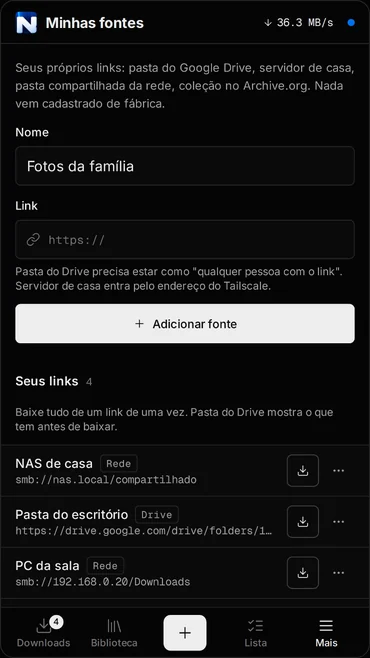
- Open Minhas fontes (your sources) and tap Adicionar fonte (add source). The app interface is in Portuguese for now.
- Under Nome (name), write something you will recognize, like "Living room PC".
- Under Link, use the format
smb://address/folder. For example:smb://192.168.0.20/Downloads. - If the folder needs a user name and password, the app shows the fields to fill in. The password is stored only on your device and never goes in the address.
4. Download the files
Tap the source to see what is inside, choose the files and confirm. They join the queue like any other download: with speed, time left, pause and resume. If the Wi-Fi drops, the download continues from where it stopped when the network comes back.
If it does not connect
- Check the network. Your phone must be on the same Wi-Fi, not on mobile data.
- Windows firewall. In Settings, Network and Internet, set the network to Private. On a Public network, Windows blocks file sharing.
- User name and password. Use the Windows user that owns the folder. A Microsoft account usually works with the account email and password.
- The address changed. Your router may give the computer a new IP after a restart. If it stopped working overnight, check
ipconfigagain or reserve the IP in your router.