
Download stopped halfway? Here is how to continue
Updated October 23, 2026
With 10% left on an 8 GB file, the connection drops and the browser says "Failed". Frustrating. Most of the time you can continue from where it stopped, without downloading everything again. This guide explains how that works and when there is no way around it.
Why downloads stop
- The connection dropped or your Wi-Fi switched networks.
- The computer went to sleep, or the phone turned off the screen and the system paused the app.
- The server cut the connection because it took too long or too many people were downloading.
- The link expired. Some websites hand out an address that only works for a few hours.
How resuming works
While downloading, Nitro Downloader writes what has arrived to disk and keeps track of each part. When you resume, it asks the server only for the missing piece. That request has a technical name, range request, and most file servers accept it.
Because the file is downloaded in several parts at once, a part that fails is requested again on its own, without touching the others.
Step by step
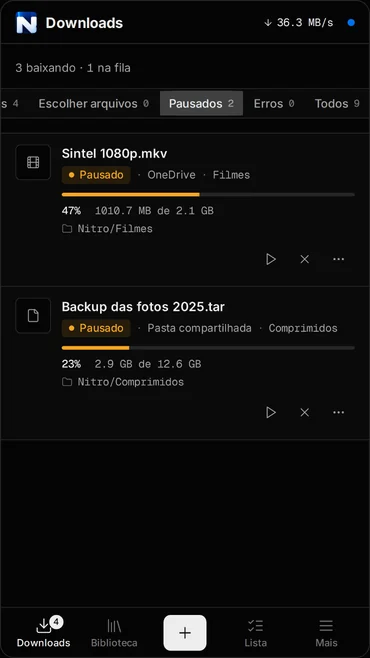
- Paused it on purpose? Tap resume on the download card. It continues right away.
- Closed the program or restarted the computer? Open it again. Downloads that were in progress come back to the list and continue.
- Connection dropped? The program retries by itself. If it is still stopped, resume it from the list.
- Got an error? Check the Errors tab. The message tells you what the server answered.
When it cannot be resumed
In two cases the download has to start again:
- The server does not allow continuing. Some websites always send the file from the beginning, or do not say how big it is. With those, the program downloads over a single connection and, if it stops, starts over.
- The link expired. If the address was temporary, the server refuses to continue. Get a new link from the original page and download again.
Phone tips
Android saves battery by closing apps in the background. Nitro Downloader runs as a service with a notification in the status bar, which already prevents most interruptions. If it still stops with the screen off:
- Open Android settings, go to Apps, Nitro Downloader, Battery, and choose Unrestricted.
- Keep the app notifications on. That is how the system knows the download is active.
- For very large downloads, prefer Wi-Fi and keep the phone charging.
Computer tips
- Turn off automatic sleep while downloading large files, or make the timeout longer.
- If your Wi-Fi is unstable, a network cable solves most drops.